
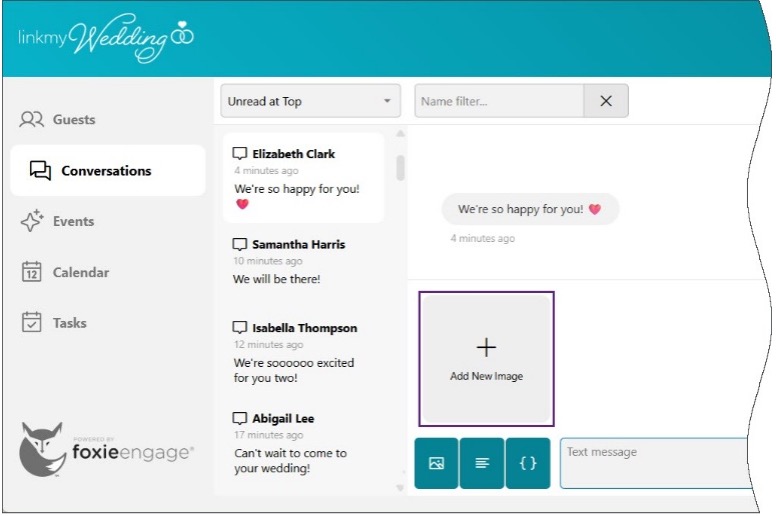
Sending images is easy and only requires that they first be uploaded.
There are several places to upload images, all of which share the same uploaded location, so it doesn’t matter which of these you choose. For the sake of ease, let’s do it from Conversations.
You can add a picture to a text or send only the image if you’d like. The picture must be 2 MB or less.
Open Conversations Pane, then choose a conversation and click on the picture icon to the left of the text box.

Click + Add New Image to select an image file from your computer and click Open (or Upload – depending on your computer). Best image formats are JPEG or PNG.

Once uploaded, the image is now available for use. Click the image you want to send and it’s ID will be placed into your message for sending.
Note: When sending images via text, the image will always be delivered before the text of your message. This is standard for all multimedia (mms) messaging.
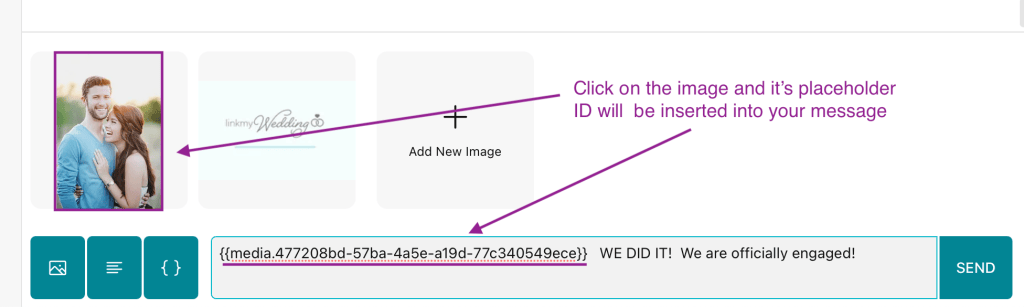
Once the text is sent, it will now show up in the message history.

If you no longer need an image, or simply want to delete it, hover over it and click the resulting X.
